See the complete process of conversion via advance and effective tool. The software simply converts all MBOX emails with attachments embedded in email file like images, text, PDF etc with perfection. Follow the simple and proper screenshots to know how to convert an MBOX file with ease.
Step 1
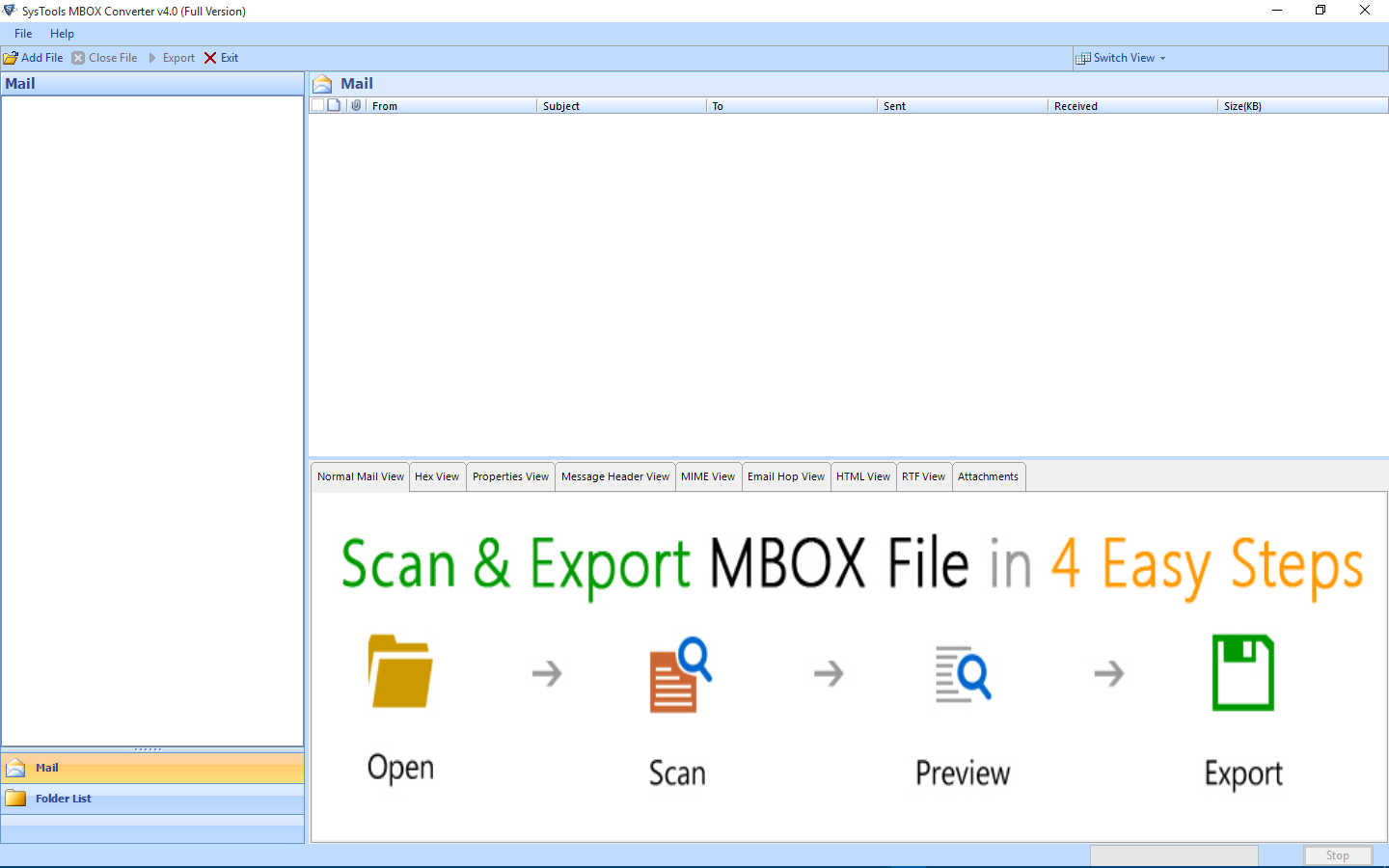
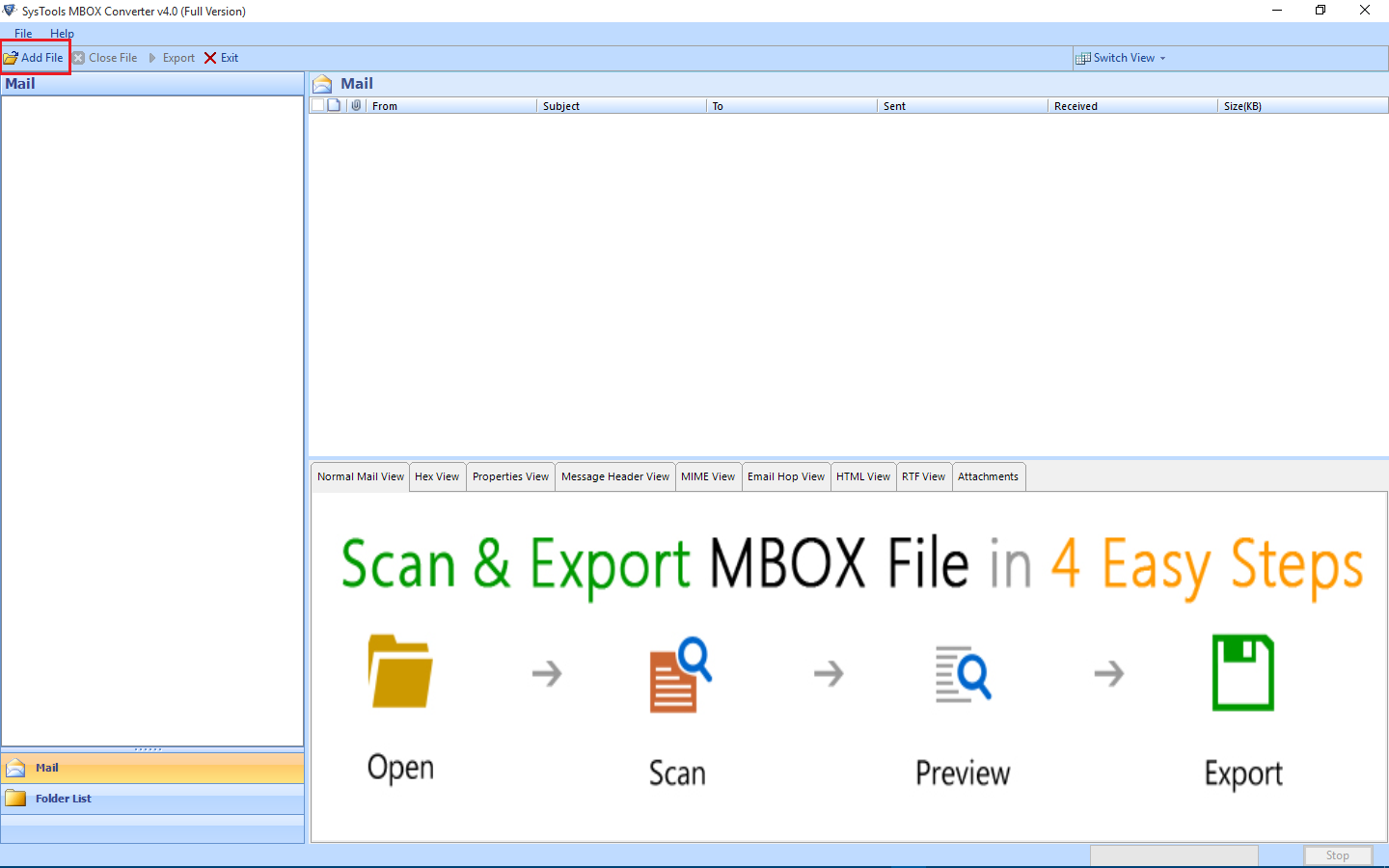
To initiate the process, first go to Start Menu » Search SysTools MBOX Converter. Now, select and launch the software
Step 2
Add File: Click on this button to add .mbox file(s) into the tool's interface
Step 3
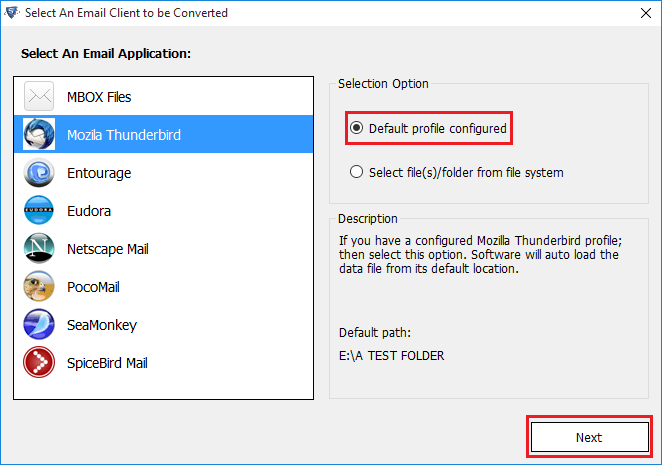
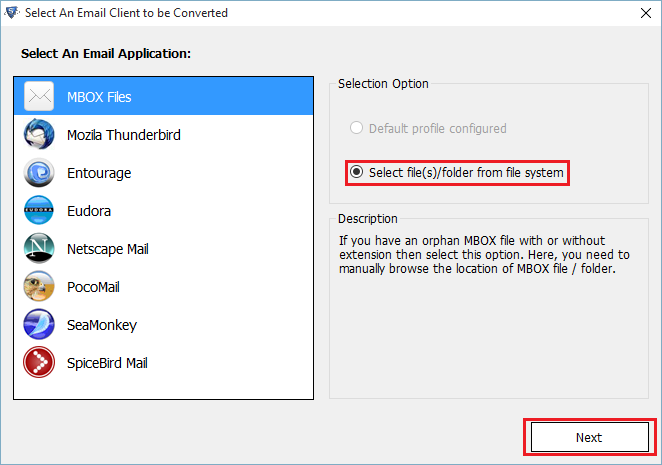
Now, the tool will display a list of email clients on the left panel & two selection options on the right panel:

Step 4
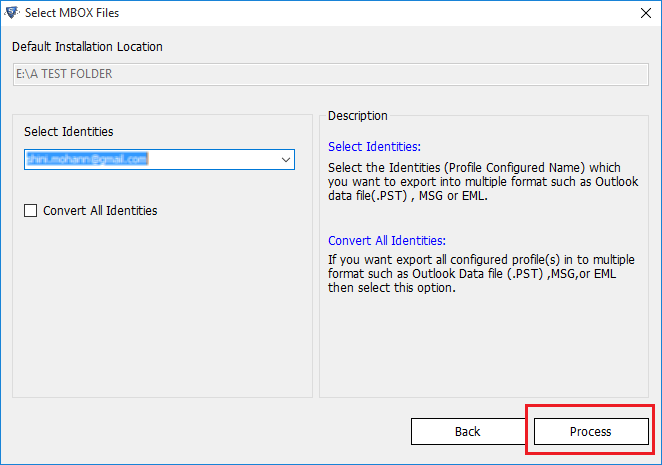
Select the configured Identity and click Process to fetch all its associated data automatically
Step 5
Another way to add the MBOX files: Select the "Select File/Folder System" option &to fetch the files from desired location
Step 6
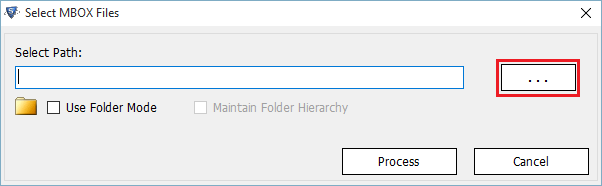
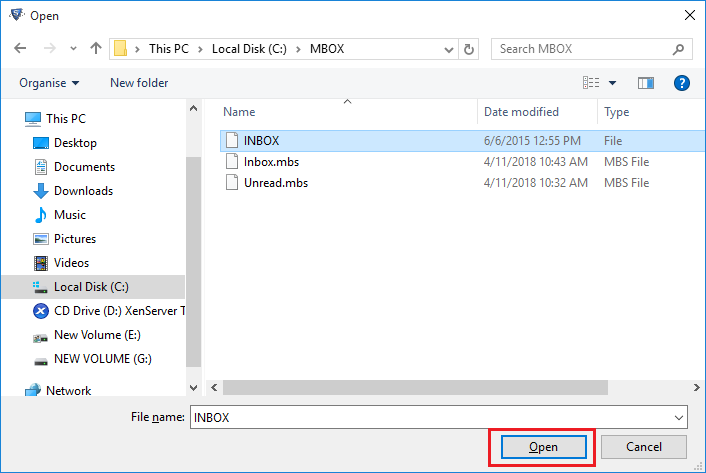
Locatethe MBOX file
Step 7
Click Open
after selecting the desired MBOX file
Step 8
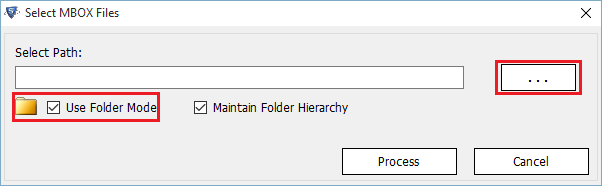
To add multiple files in bulk, use the Folder mode
Step 9
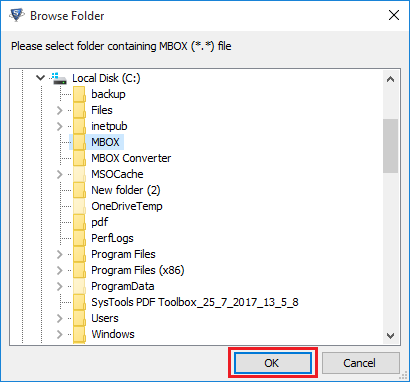
Simple choose the folder which contains the desired MBOX files, then click OK
Step 10
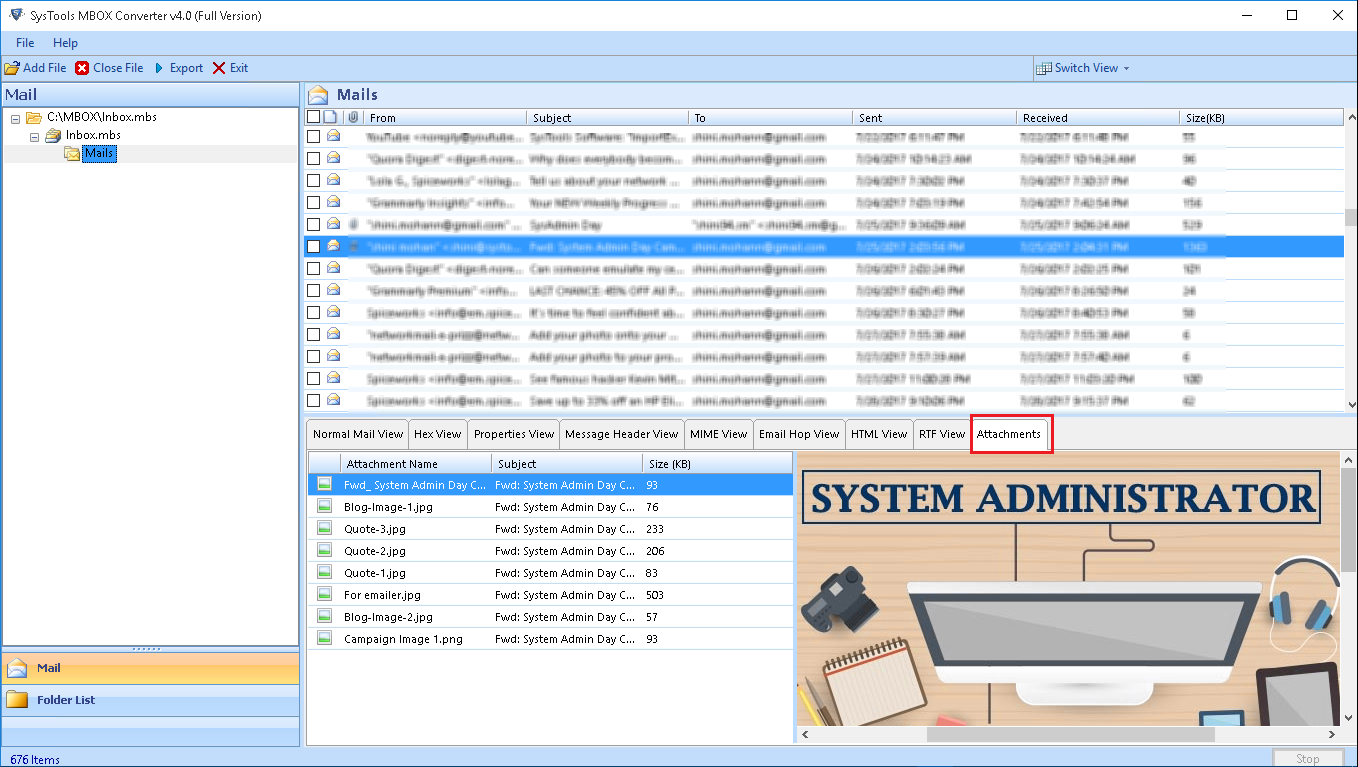
The software will load all the emails in the preview window. View them in eight different preview types

Step 11
To view your attachments, simply click on the Attachments section in the preview pane
Step 12
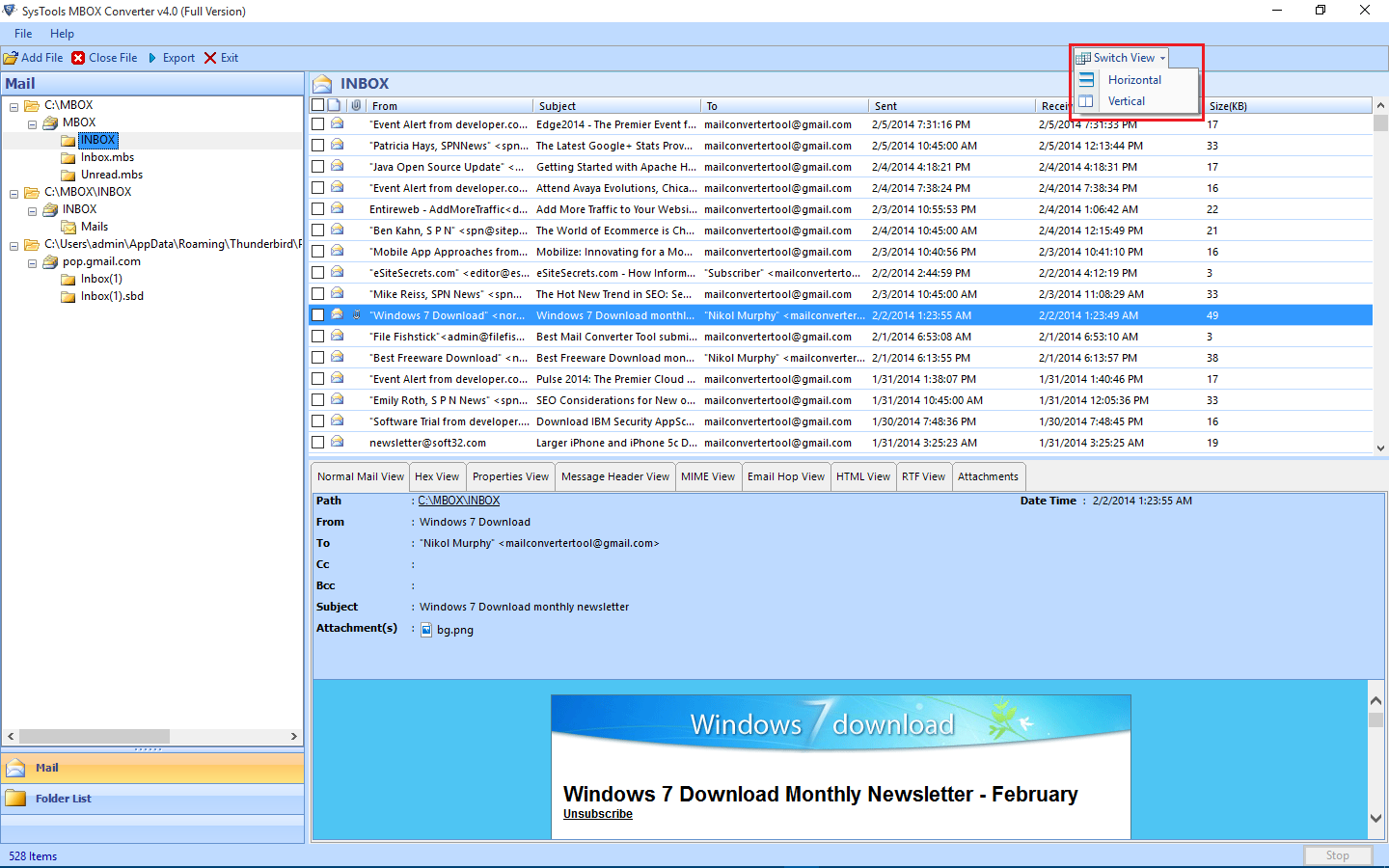
The software also supports emails display in Horizontal and Vertical views
Step 13
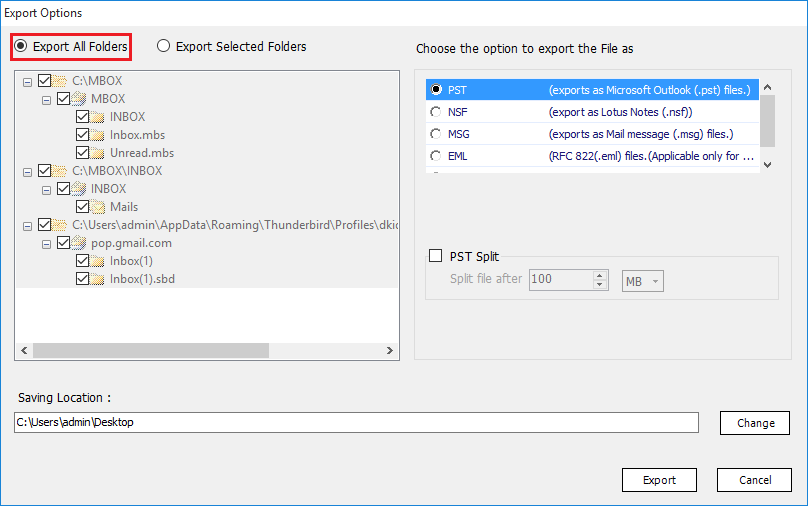
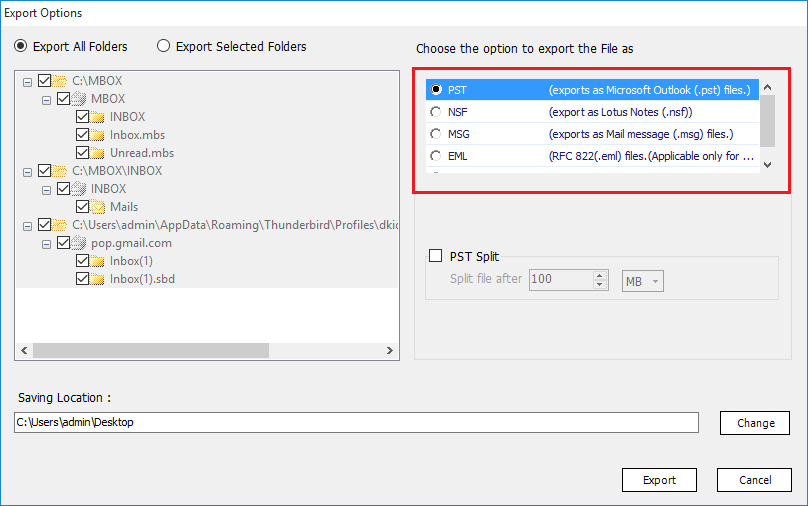
Selecting the Export button will give you two options

Step 14
Choose from the multiple export formats provided by the software
Step 15
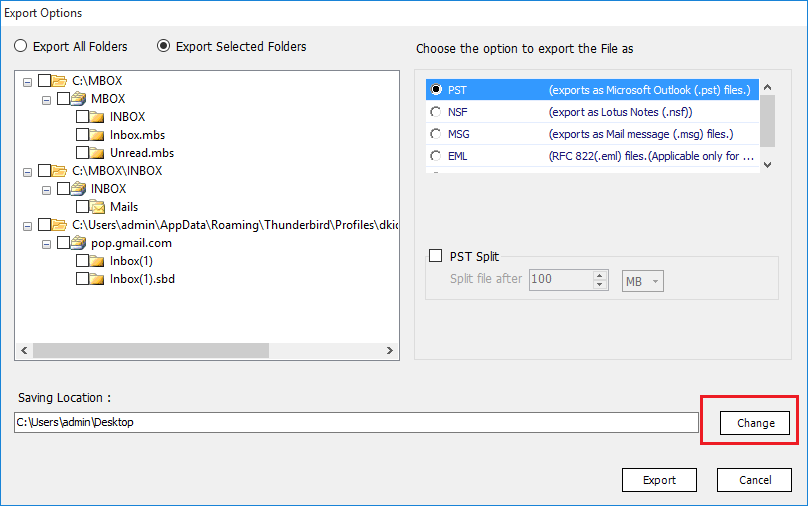
Also, choose your desired location to save the output files by clicking on "Change Location" button
Step 16
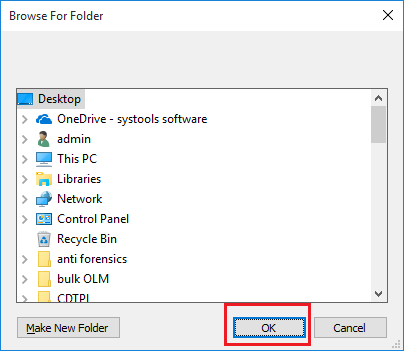
Browse for the destination folder and click OK
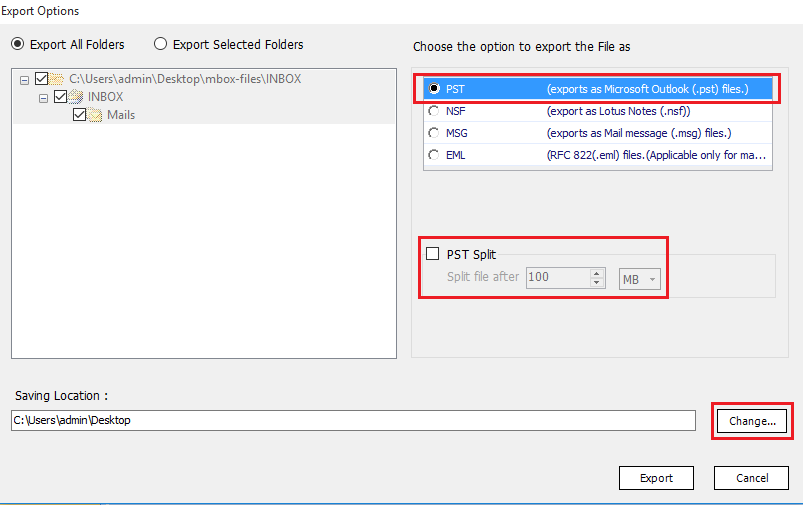
Step 17
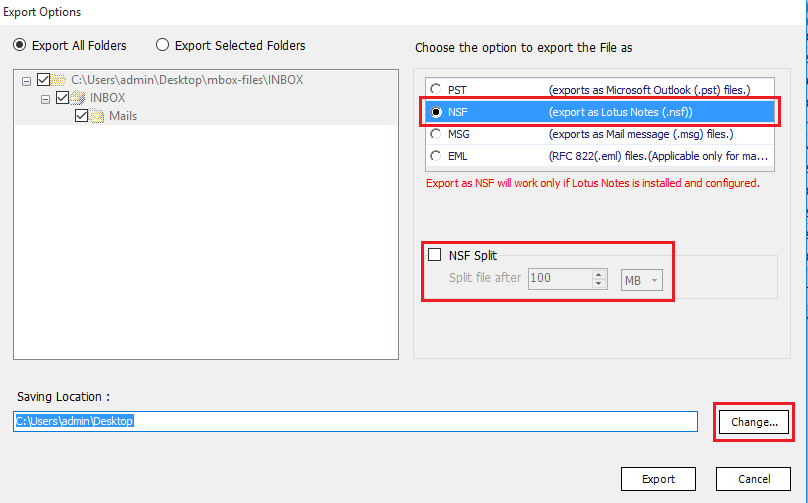
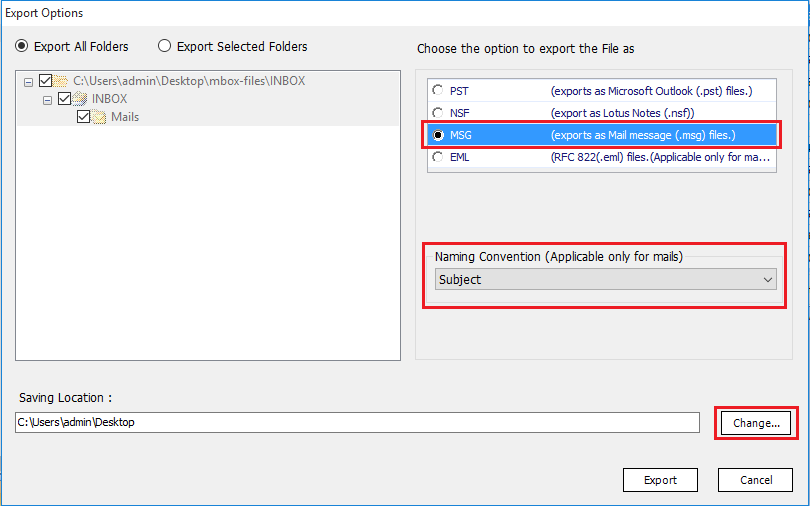
Choose the following option and click on "Export" button to start the process

Step 18
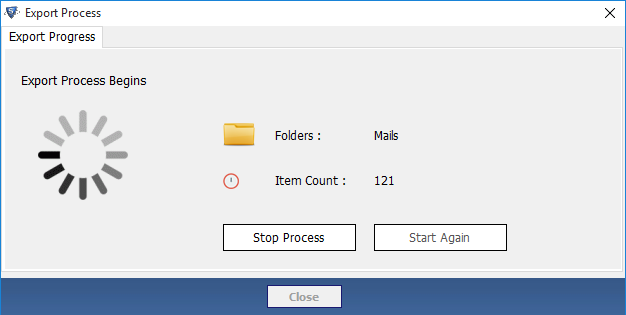
The export progress begins, it will take a few minutes (according to size of MBOX files)

Step 19
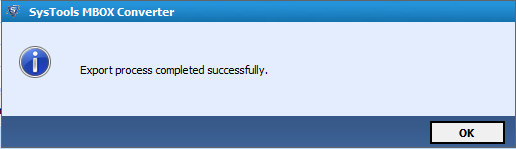
Once the export process gets over, a confirmation message "Export process completed successfully" will pop-up on the sceen.

Step 20
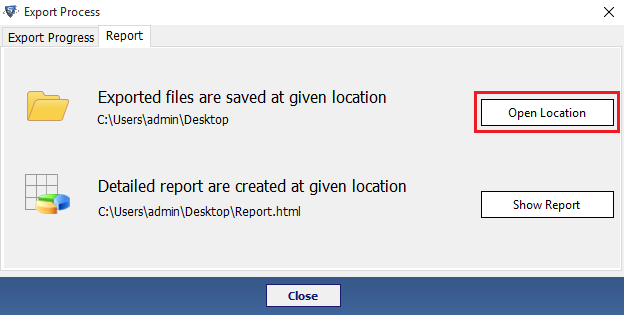
As the export process finishes, you will get a report. Click on "Open Location" to find out the converted PST file.

Step 21
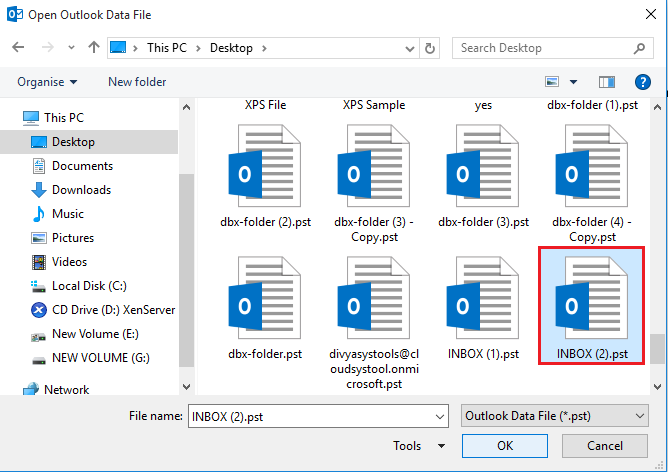
To view the new converted PST file, directly go to the respective folder path where you had saved the PST file.

Step 22
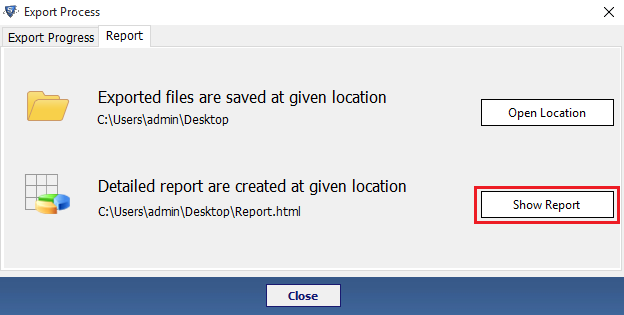
As the export process finishes, an Export Report will be generated. You can view the report by clicking on "Show Report" button.

Step 23
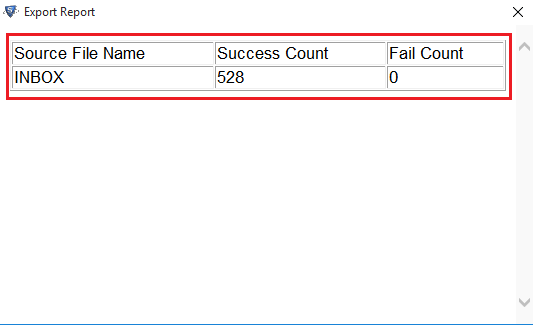
In the export report, you can see source file name, success count and fail count

Note
Step 17
Choose the following option and click on "Export" button to start the process

Step 18
The export progress begins, it will take a few minutes (according to size of MBOX files)

Step 19
Once the export process gets over, a confirmation message "Export process completed successfully" will pop-up on the sceen.

Step 20
As the export process finishes, you will get a report. Click on "Open Location" to find out the converted PST file.

Step 21
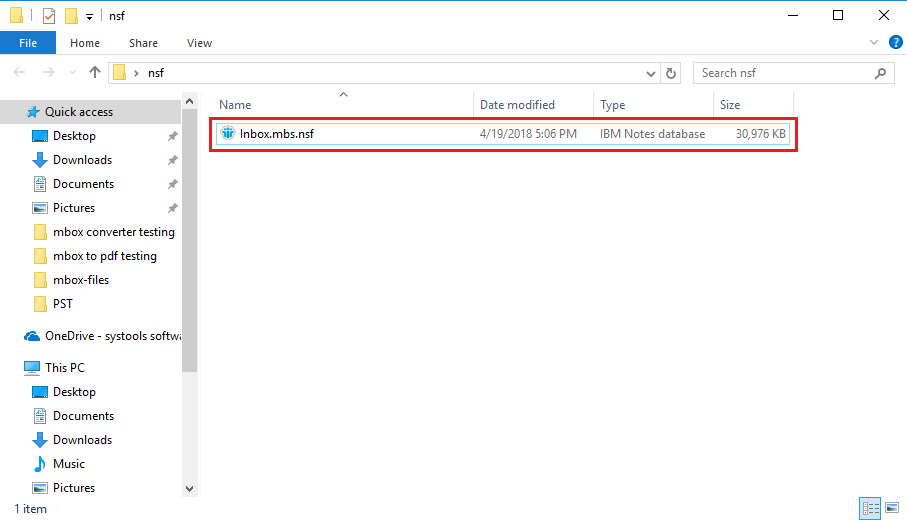
To view the new converted NSF file, directly go to the respective folder path where you had saved the NSF file.

Step 22
As the export process finishes, an Export Report will be generated. You can view the report by clicking on "Show Report" button.

Step 23
In the export report, you can see source file name, success count and fail count

Step 17
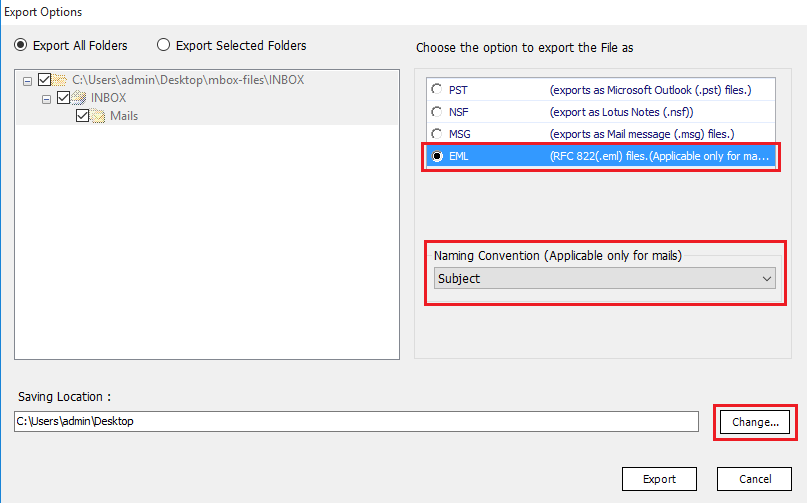
Choose the following option and click on "Export" button to start the process

Step 18
The export progress begins, it will take a few minutes (according to size of MBOX files)

Step 19
Once the export process gets over, a confirmation message "Export process completed successfully" will pop-up on the sceen.

Step 20
As the export process finishes, you will get a report. Click on "Open Location" to find out the converted PST file.

Step 21
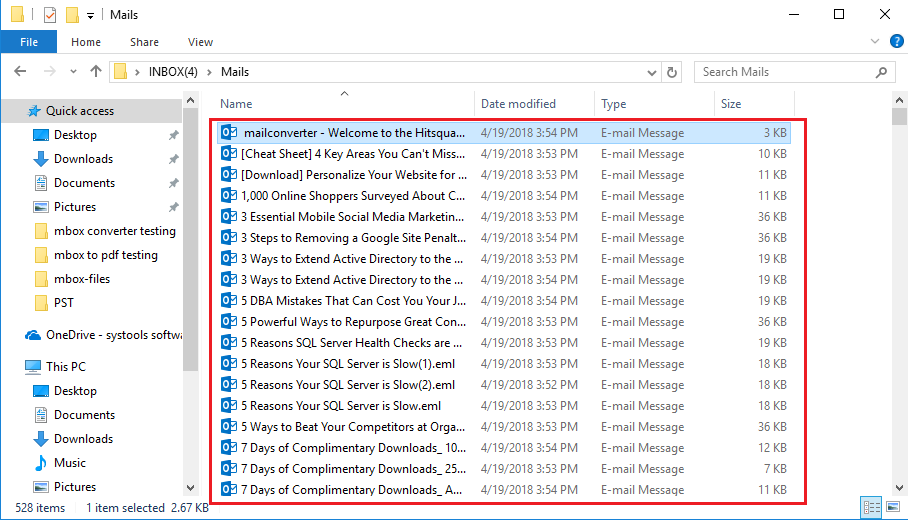
To view the new converted EML file, directly go to the respective folder path where you had saved the EML file.

Step 22
As the export process finishes, an Export Report will be generated. You can view the report by clicking on "Show Report" button.

Step 23
In the export report, you can see source file name, success count and fail count

Step 17
Choose the following option and click on "Export" button to start the process

Step 18
The export progress begins, it will take a few minutes (according to size of MBOX files)

Step 19
Once the export process gets over, a confirmation message "Export process completed successfully" will pop-up on the sceen.

Step 20
As the export process finishes, you will get a report. Click on "Open Location" to find out the converted PST file.

Step 21
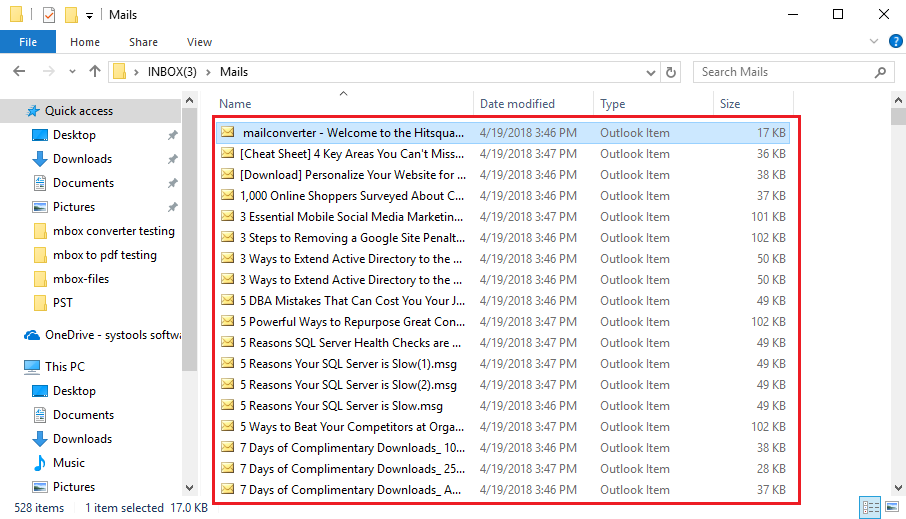
To view the new converted MSG file, directly go to the respective folder path where you had saved the MSG file.

Step 22
As the export process finishes, an Export Report will be generated. You can view the report by clicking on "Show Report" button.

Step 23
In the export report, you can see source file name, success count and fail count.

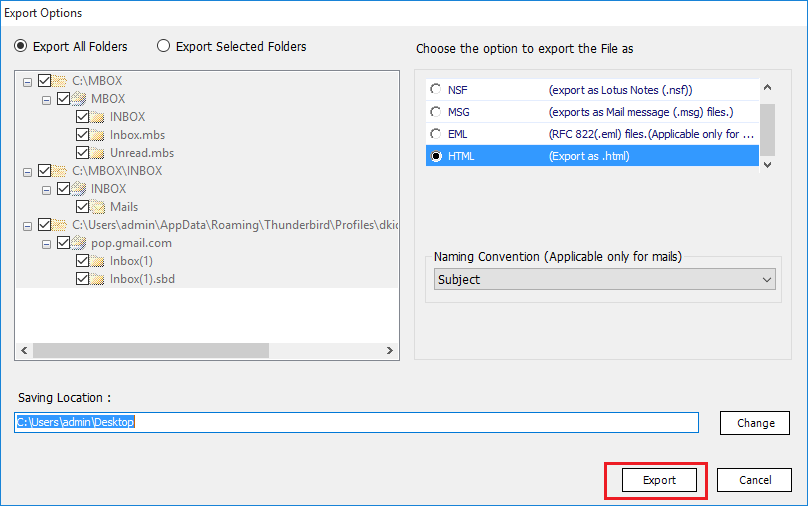
Step 17
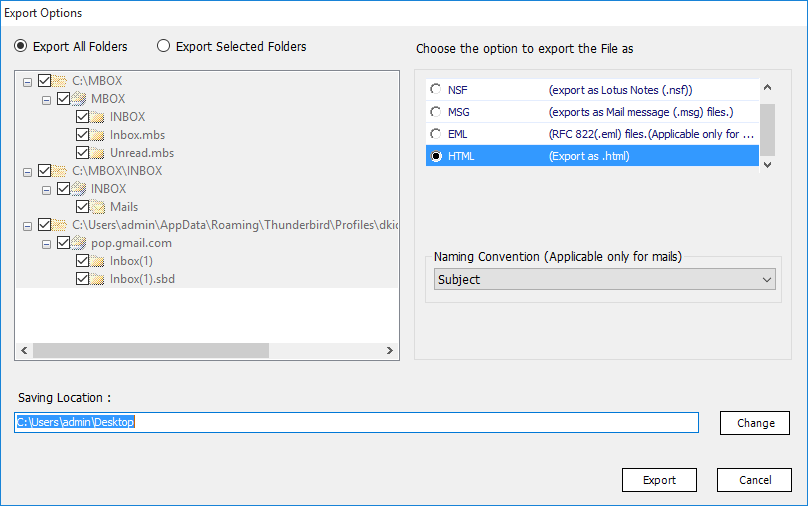
Now, Select HTML radio button to export MBOX files into HTML format.

Step 18
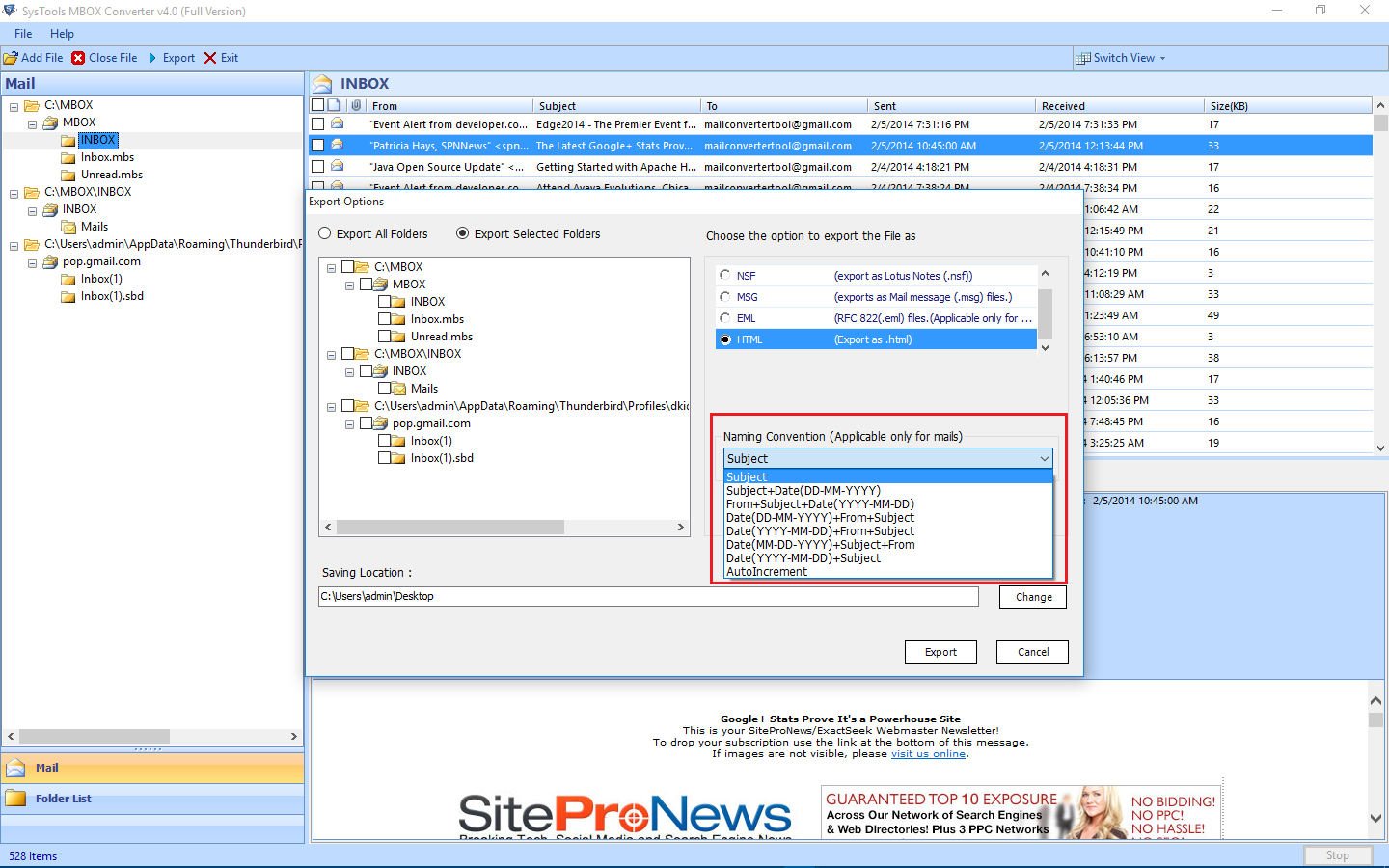
You can specify the following naming conventions:
Naming Convention: This refers to the naming of the final converted files such as by Subject+Date, From+Subject+Date, Autoincrement, etc.

Step 19
Click on Export to start the export process

Step 20
As the users click the export button, they will get the following window, showing the details of the Export Process as displayed in the image below

Step 21
Export process completed successfully. Click OK

Step 22
As the export process finishes, you will get a report. Click on "Open Location" to find out the converted PST file.

Step 23
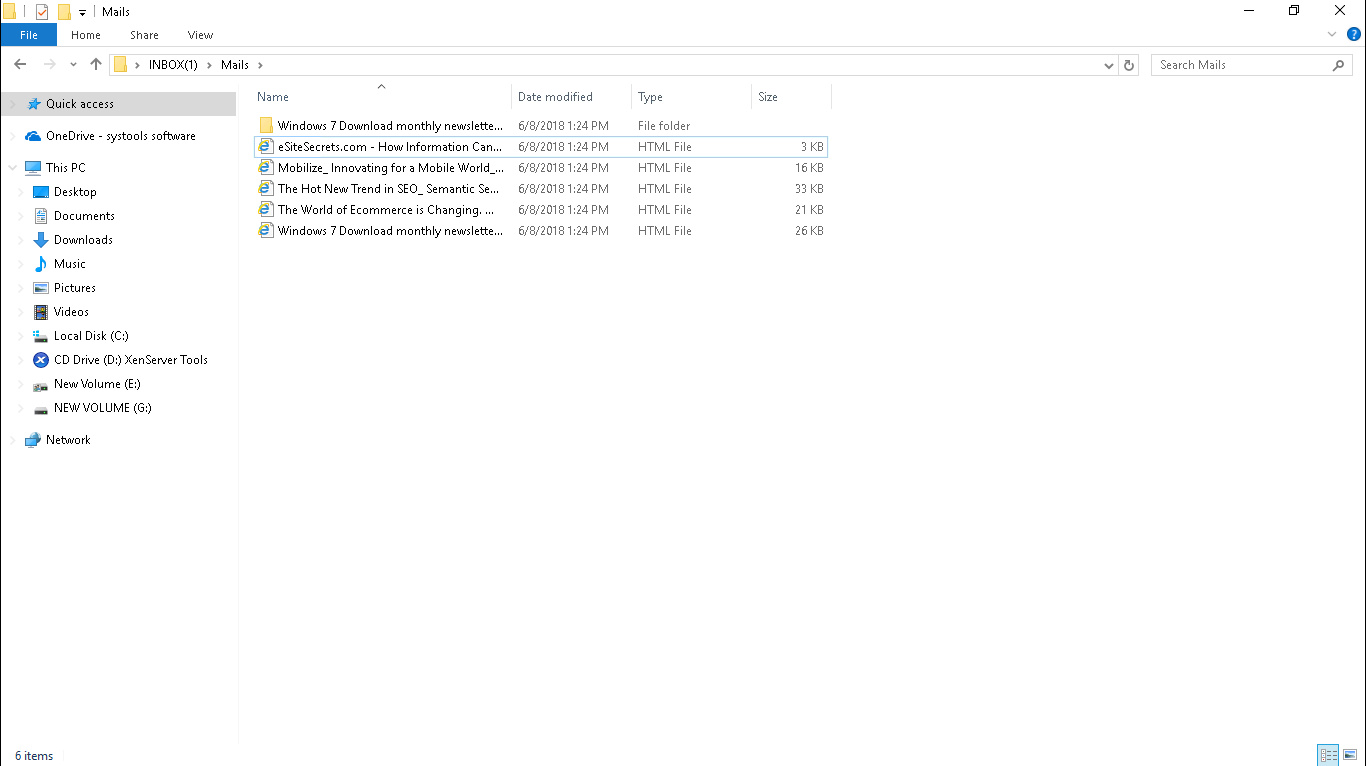
To view the converted HTML files, directly go to the respective folder path where you had saved the HTML file.

Step 24
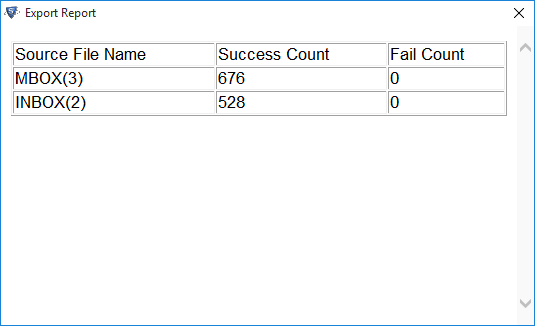
As the export process finishes, an Export Report will be generated. You can view the report by clicking on "Show Report" button.

Step 25
In the export report, you can see source file name, success count and fail count.